
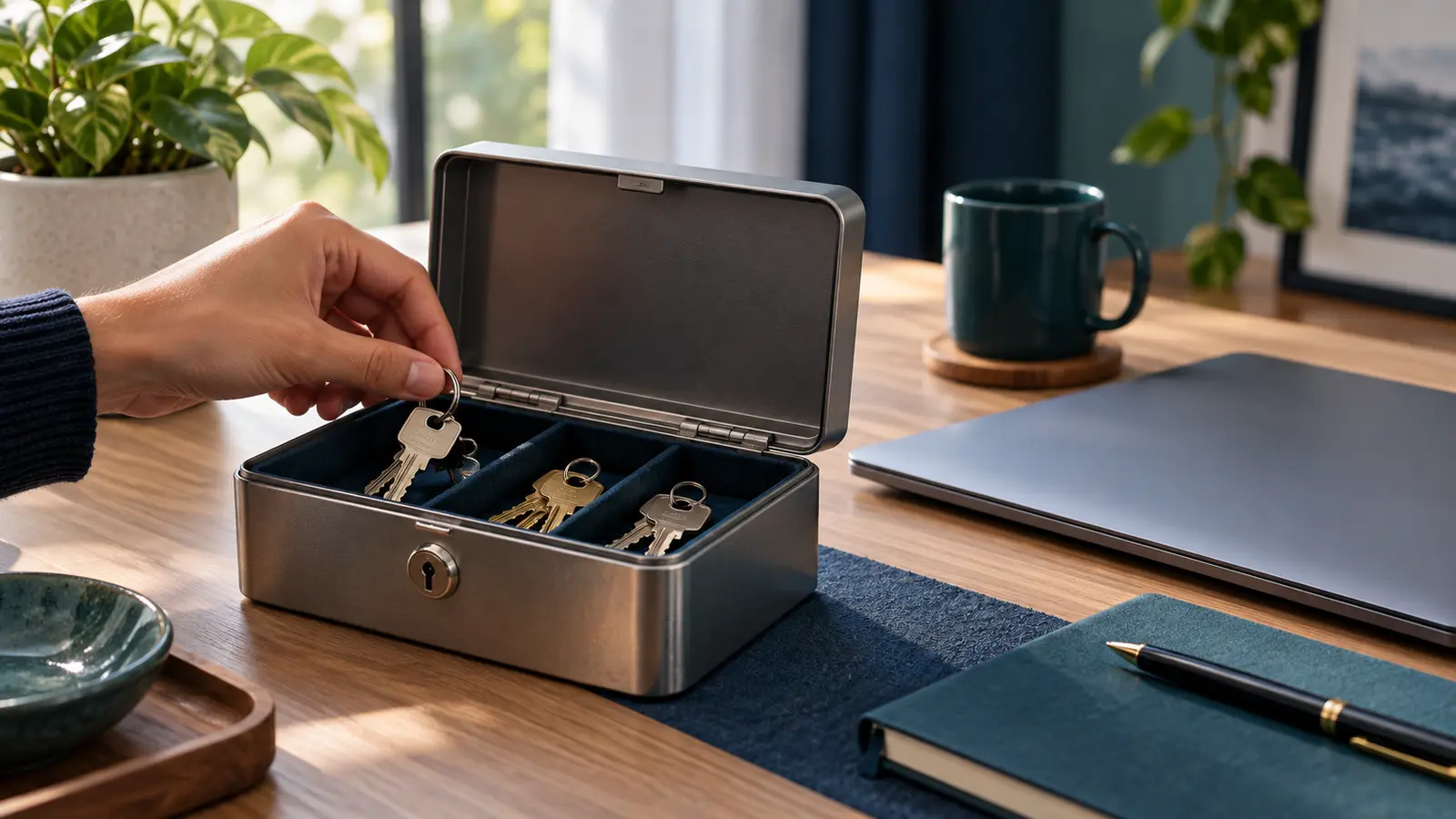
Hero image: password-managers-explained-a-safer-way-to-manage-logins.webp
Using the same password across many accounts is convenient until one service is compromised. If the same credentials work elsewhere, a single exposed password can create risk across multiple accounts. Password managers are designed to make unique credentials practical by storing them in an encrypted vault and helping users generate and fill passwords.
This guide explains the concept rather than recommending a specific provider. Security features and recovery models vary, so current provider documentation should be checked before choosing a service.
Why unique passwords matter
Every important account should have its own password. If one site’s credentials are exposed, uniqueness limits how useful that password is elsewhere.
Without a password manager, people often cope by reusing passwords, making predictable variations or storing them insecurely. A manager reduces the memory burden because you mainly need to protect access to the vault rather than memorize every individual credential.
What a password manager does
Typical password managers can:
• store login credentials in an encrypted vault;
• generate long, random passwords;
• fill credentials into websites and applications;
• synchronize across authorized devices;
• store other sensitive notes or account information;
• sometimes alert users to reused or exposed credentials.
Exact capabilities differ between products and plans.
The master password or primary credential
The credential protecting your vault is especially important. Use a strong, unique passphrase or follow the provider’s current guidance. Do not reuse it on another service.
Some modern systems also support passkeys, hardware security keys or other authentication methods. Understand how your chosen manager handles authentication and recovery before moving critical accounts into it.
Enable multi-factor authentication where appropriate
Multi-factor authentication adds another layer beyond a password. For high-value accounts such as email, financial services and the password manager itself, use strong authentication options supported by the service.
Authentication apps, security keys and passkeys can provide different security properties from SMS codes. The appropriate option depends on what the provider supports and your recovery needs.
Recovery deserves planning
A secure system that you cannot recover can create its own problem. Review the password manager’s recovery process before you need it.
Keep recovery codes according to the provider’s instructions in a secure location separate from the account itself. If you use a hardware key, consider whether a backup key is appropriate. Do not create an insecure recovery shortcut that defeats the security of the vault.
How to migrate gradually
You do not need to change every password in one sitting. Start with the accounts that can unlock other accounts or contain sensitive information:
1. primary email;
2. password manager;
3. financial accounts;
4. cloud storage;
5. social and business accounts;
6. other frequently used services.
As you log into older accounts, replace reused passwords with unique generated ones and save them to the vault.
Watch for phishing
A password manager does not eliminate phishing. Pay attention to the domain and context before entering sensitive information. Autofill behavior can sometimes provide a useful signal when credentials are not associated with the site you are viewing, but it should not be your only defense.
Never send your master password, recovery codes or authentication secrets in response to unsolicited messages.
Protect your devices
Your vault is accessed through devices, so basic device security still matters. Keep operating systems and browsers updated, use screen locks, avoid untrusted software and protect devices from unauthorized access.
If a device is lost, know how to revoke its access where your password manager or other services support that feature.
What to evaluate when choosing a manager
Consider:
• security architecture and published documentation;
• independent security assessments where available;
• supported devices and browsers;
• multi-factor authentication options;
• passkey support if relevant;
• recovery model;
• export and portability options;
• family or team sharing features if needed;
• pricing and plan limitations;
• provider history and response to security incidents.
No product is risk-free. The question is whether its design and your usage improve your security compared with your current practice.
Password managers and teams
Businesses should avoid sharing credentials through chat messages, spreadsheets or informal documents. Team-oriented password managers can provide controlled sharing, revocation and administrative features.
Access should follow the principle of least privilege: people receive the credentials they need, and access is removed when it is no longer required.
What about browser password storage?
Browsers increasingly include password and passkey management. Whether a dedicated manager or browser-based solution is appropriate depends on your devices, threat model, sharing needs and desired features.
The most important improvement for many users is moving away from password reuse toward unique credentials protected by strong account security.
A practical setup checklist
• Choose a reputable manager after reviewing current documentation.
• Create a unique primary credential.
• Configure strong multi-factor authentication where supported.
• Save recovery information securely.
• Install only official applications/extensions.
• Change the most important reused passwords first.
• Generate unique passwords for new accounts.
• Review old and unused accounts periodically.
• Keep devices and software updated.
Next step
Explore UpdateMind cybersecurity learning resources for broader digital-safety skills. Verify the exact current course destination before publication.
Frequently asked questions
Is putting all passwords in one manager dangerous?
A password vault becomes an important security asset, so it must be protected carefully. For many users, a reputable manager used correctly can reduce the significant risk created by password reuse. Evaluate the provider’s current security and recovery design.
What if I forget the master password?
Recovery varies by provider. Review and configure recovery options before relying on the manager, and store recovery materials securely.
Should I let a password manager generate passwords?
Generating unique random passwords is a core benefit of many managers. Follow service requirements and ensure the generated credential is saved correctly before changing an account password.
Do password managers replace multi-factor authentication?
No. Use appropriate additional authentication for important accounts where supported.