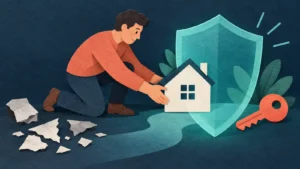

Hero image: wordpress-website-security-step-by-step-plan.webp
WordPress security can become an endless project if you try to implement every possible control at once. A busy site owner needs a prioritized plan: protect the most consequential accounts, reduce unnecessary exposure, keep software maintained and make recovery possible.
Step 1: secure the domain and hosting accounts
Use unique credentials and multi-factor authentication where supported. Confirm recovery email and phone information. The domain and host can control the site’s availability even if the WordPress administrator account is untouched.
Step 2: secure administrator email
Password resets and security alerts often depend on email. Protect the mailbox with strong authentication and review recovery options.
Step 3: review WordPress users
List all administrator and editor accounts. Remove users who no longer need access. Give each person an individual account and the least privilege required.
Step 4: verify backups
Confirm what is backed up, how often, retention period and storage location. Make sure you know how to restore the site.
For an important site, schedule a restore test rather than assuming a backup job is sufficient.
Step 5: update the software stack
Review WordPress core, plugins and themes. Apply updates through a process appropriate to the site’s importance and compatibility risk.
If fear of breaking the site causes months of delay, improve staging and recovery instead of accepting permanent outdated software.
Step 6: remove what you do not use
Delete abandoned plugins, themes and accounts. Reduce the number of components that need monitoring.
Step 7: review authentication
Use unique strong passwords. Enable MFA where available. Consider additional login protections appropriate to the site, but do not confuse obscurity with complete security.
Step 8: check HTTPS and browser warnings
Confirm the site loads through HTTPS and does not produce mixed-content or certificate warnings. Remember that HTTPS protects data in transit; it does not replace application security.
Step 9: inspect basic site health
Check unexpected administrator accounts, unusual changes, failed updates, security alerts and uptime. If using a security plugin, understand which events it monitors.
Step 10: document an emergency route
Keep contact details for the host and relevant technical support. Record where backups are located and how to disable or reset compromised access.
A one-hour first pass
0–10 minutes: secure registrar, host and email.
10–20 minutes: review WordPress users.
20–30 minutes: verify backup status.
30–45 minutes: review updates and unused plugins/themes.
45–55 minutes: review security alerts and HTTPS.
55–60 minutes: document follow-up tasks.
Do not rush risky production updates simply to fit a timer; move unfinished technical work into a controlled maintenance window.
Weekly maintenance
For many actively maintained sites, a short weekly review can include updates, backup status, security alerts and obvious site problems.
Monthly maintenance
Conduct a deeper review of users, plugin/theme inventory, backup restoration evidence, domain/hosting access and outstanding technical debt.
Quarterly or after major changes
Review the complete architecture, external integrations, administrator permissions and incident plan. Confirm that old services and credentials have been removed.
Prioritize by risk
If you have only 15 minutes, do not spend them changing cosmetic login settings while the site has an unknown backup state or former contractors still have administrator access.
Prioritize controls that reduce the probability or impact of meaningful incidents.
Security plugin decision
A reputable security plugin can add useful monitoring and controls, but choose it for defined requirements. Avoid installing multiple overlapping tools simply to feel safer.
What to do after a suspicious event
Do not immediately delete all evidence. Restrict unauthorized access, contact appropriate technical support, rotate affected credentials, identify the likely entry point and recover from a trusted state. Personal-data incidents may create additional legal obligations.
No plan eliminates all risk
The purpose of this plan is risk reduction and resilience. A well-maintained site can still experience incidents, which is why backups and response procedures matter.
Next step
Complete the first-hour security pass and put recurring maintenance on your calendar. Explore the UpdateMind WordPress Website Security course after its current catalogue details are verified.
Frequently asked questions
What should I secure first?
Start with high-impact access: domain, hosting, administrator email and WordPress administrator accounts.
Is a backup enough if I have never restored it?
It is better than no backup, but a restore test provides stronger evidence that recovery works.
How many security plugins do I need?
There is no universal number. Use controls that address defined needs and avoid unnecessary overlap.
Can this checklist guarantee my site will not be hacked?
No. It is a risk-reduction and recovery plan, not a guarantee.